How Do I Change The Email Used On My Account?
Step 1:
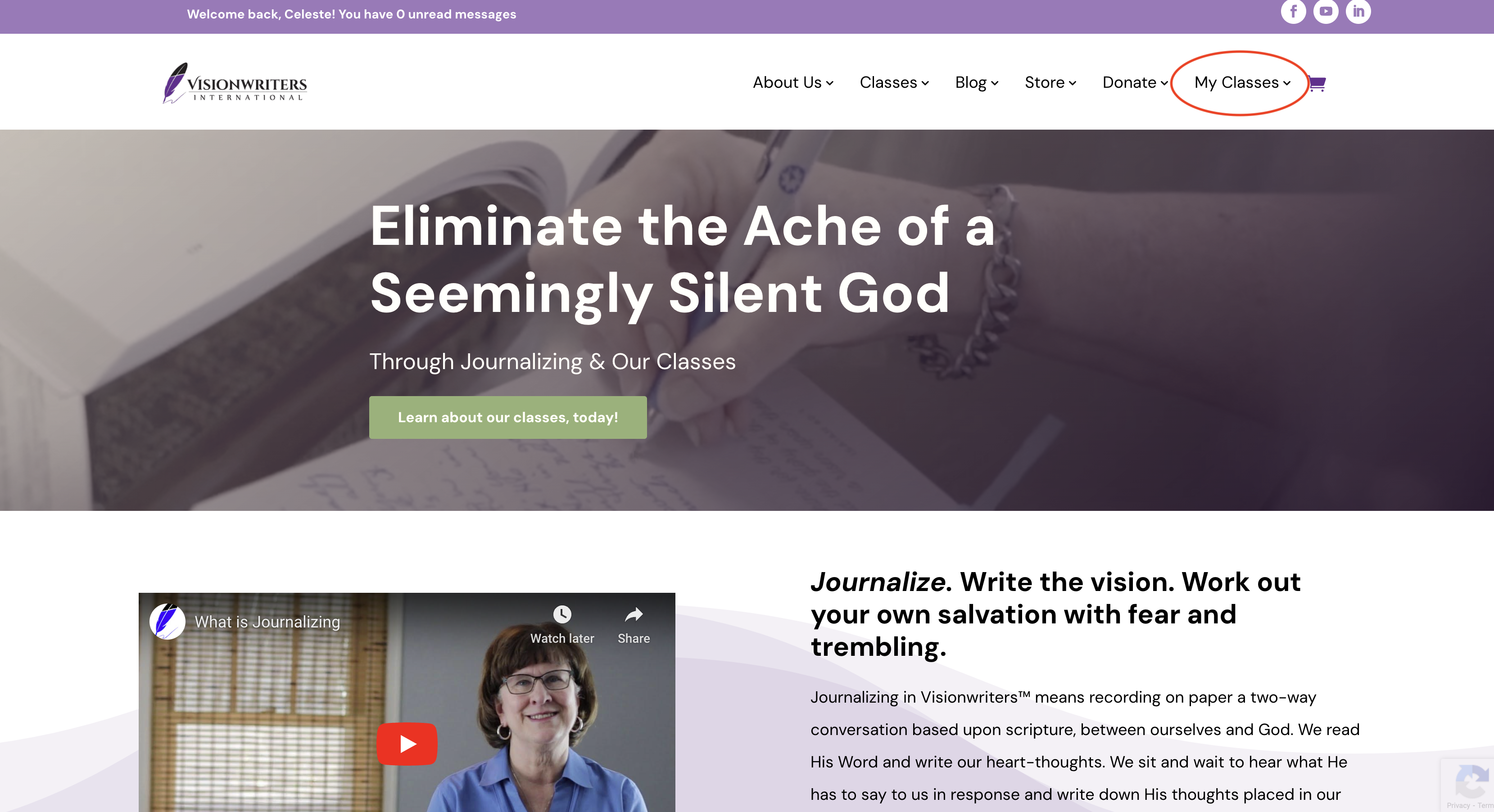
Click on the ‘My Classes’ tab located in the top navigation bar of the homepage.
Step 2:
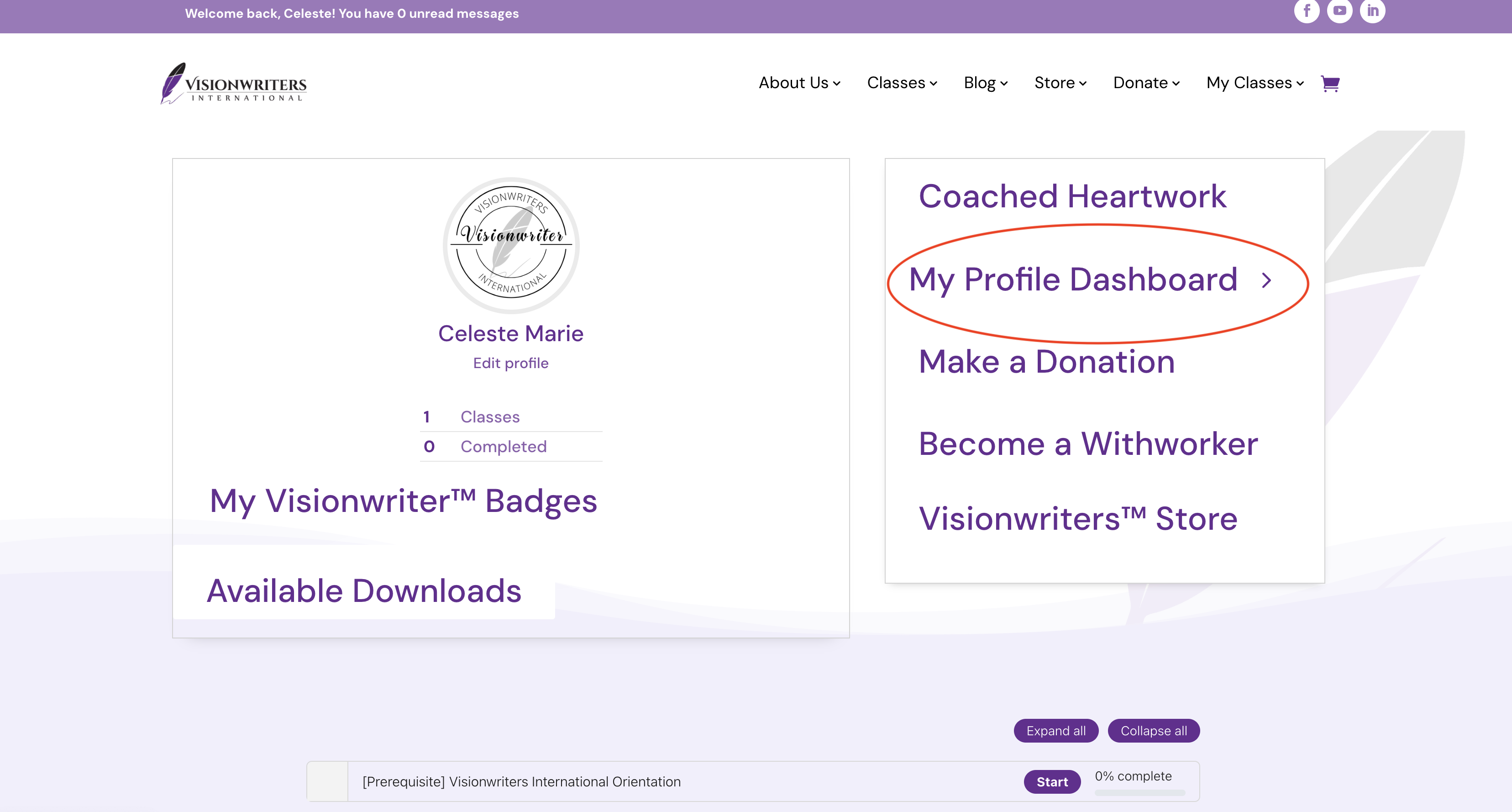
Once you’re on the ‘My Classes’ page, find and click on the ‘My Profile Dashboard’ option. This option should be visible either in the sidebar or as part of the main dashboard navigation.
Step 3:
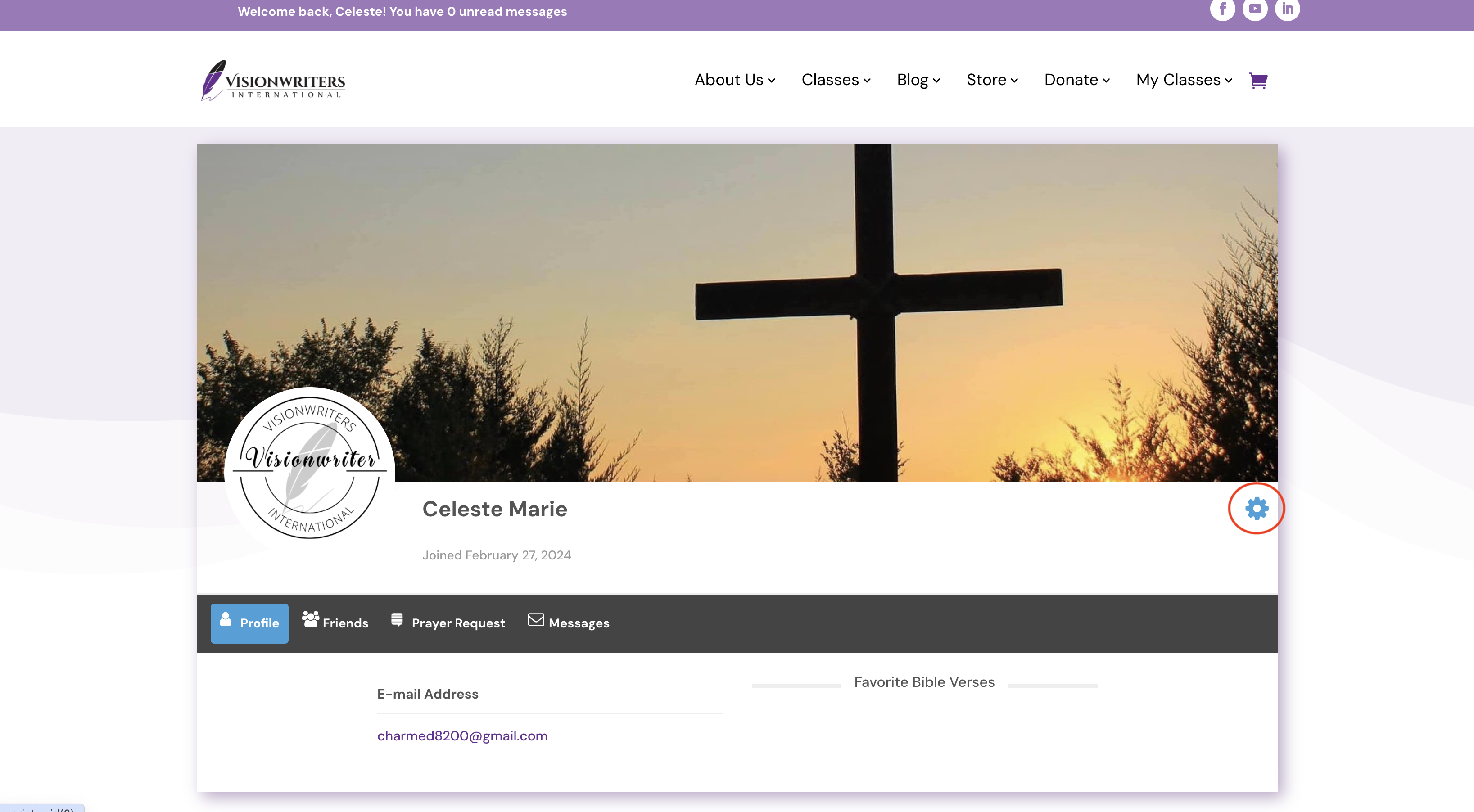
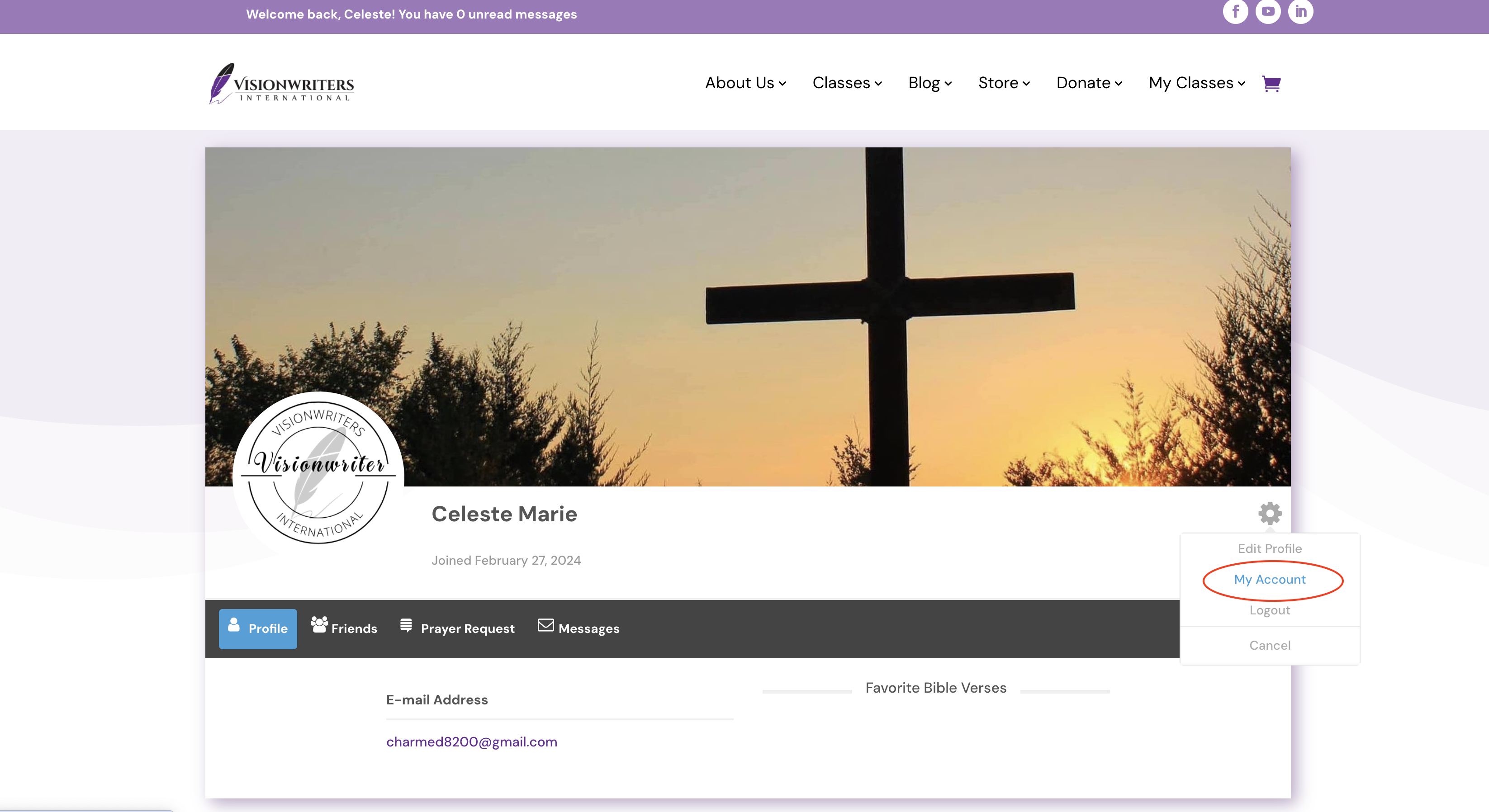
Now that you’ve accessed your profile dashboard, locate the settings gear icon, typically found in the top right-hand corner of the page. Click on it to proceed.
Step 4:
In the settings menu, click on the ‘My Account’ tab. This will take you to your account management page, where your personal information is stored.
Step 5:
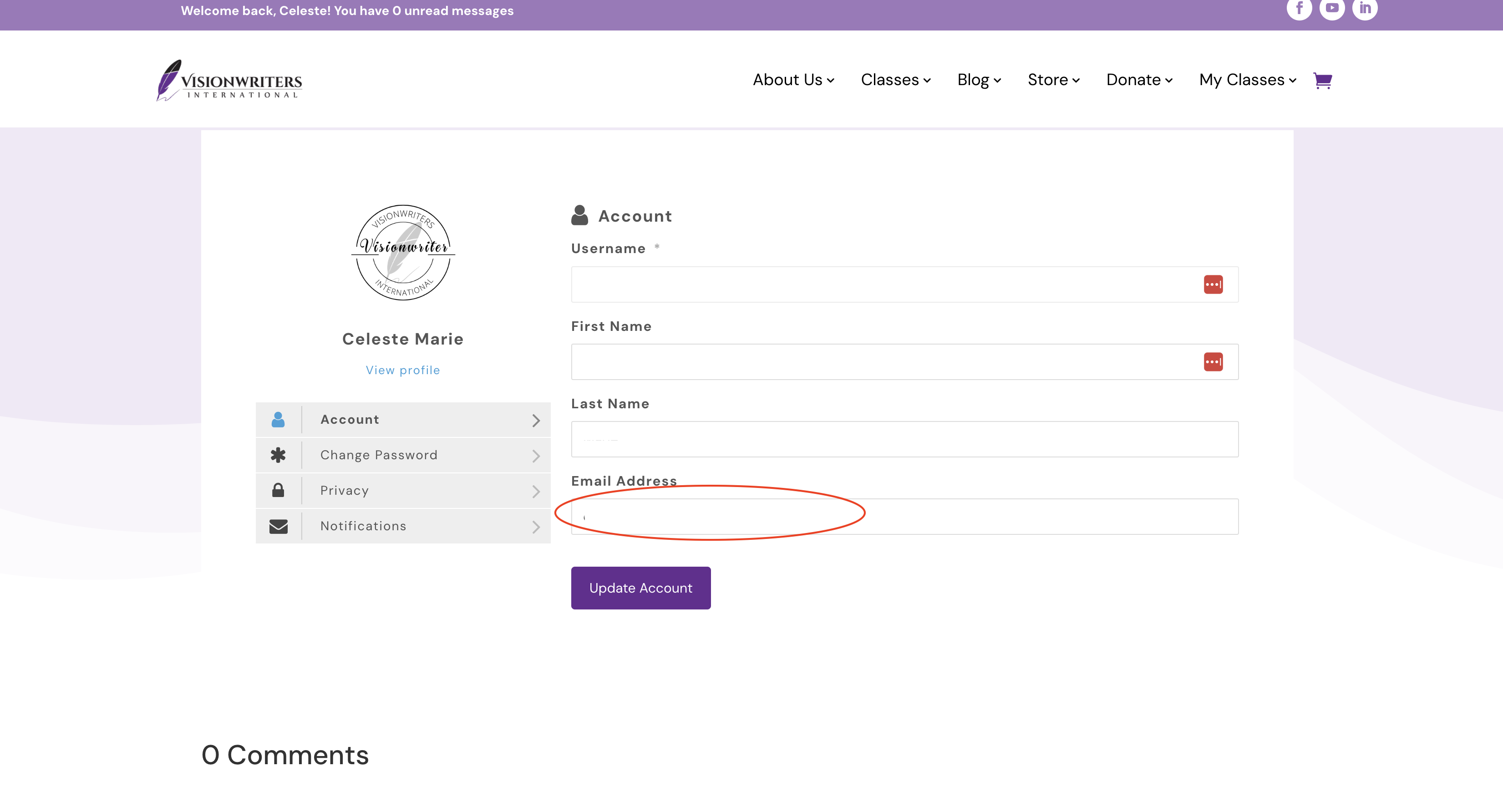
On the ‘My Account’ page, find the section displaying your current email address. Type in the new email address that you want to update it to in the corresponding input field. Ensure that the email is entered correctly without any typos.
Step 6:
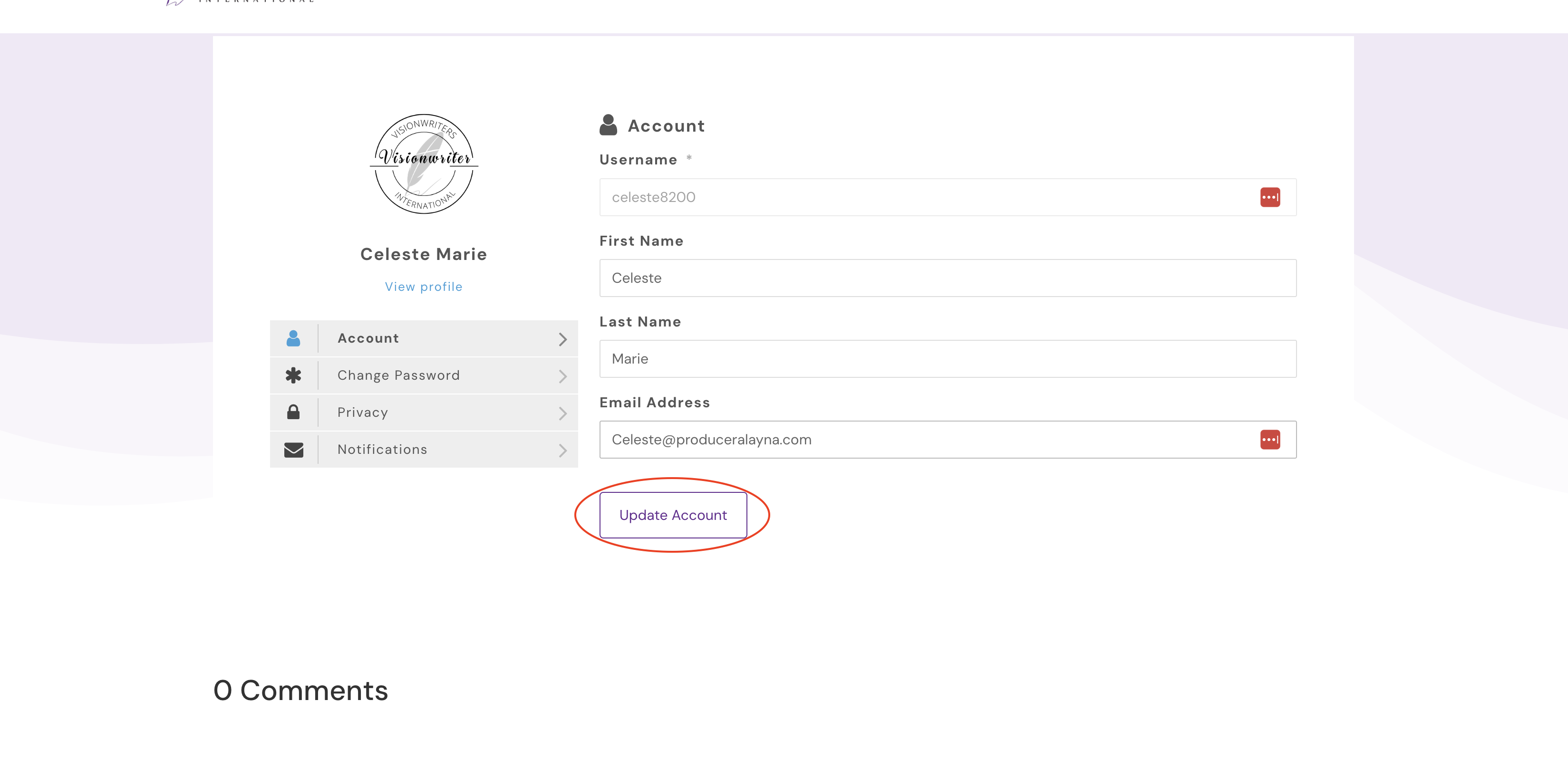
After entering your new email address, scroll down and click the ‘Update Account’ button. This button is located at the bottom of the account settings section.
Step 7:
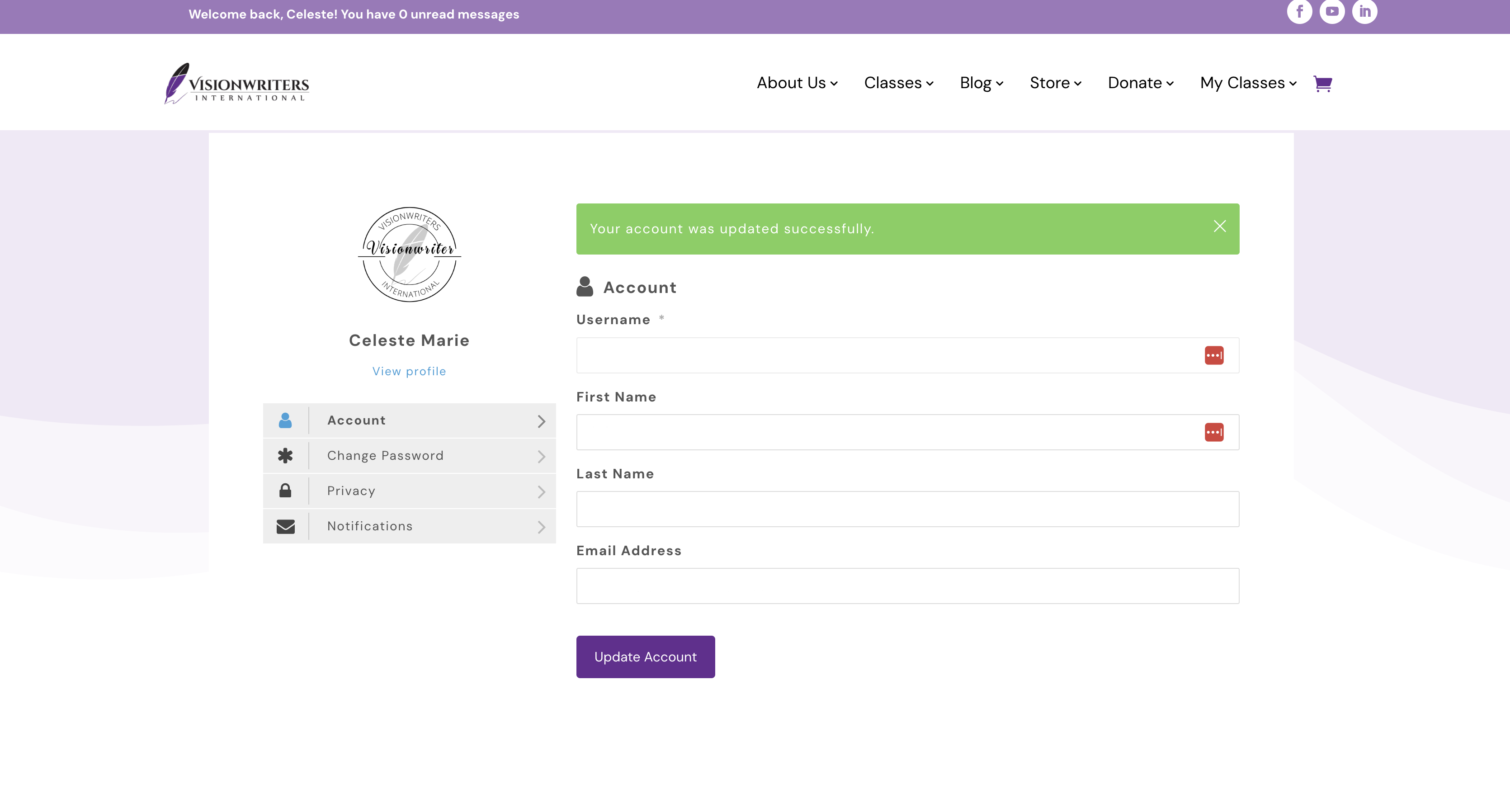
Once you click ‘Update Account’, the page will reload. After reloading, a confirmation message will appear on your screen reading, “Your account was updated successfully.” This confirms that your email change has been saved.
Step 8:
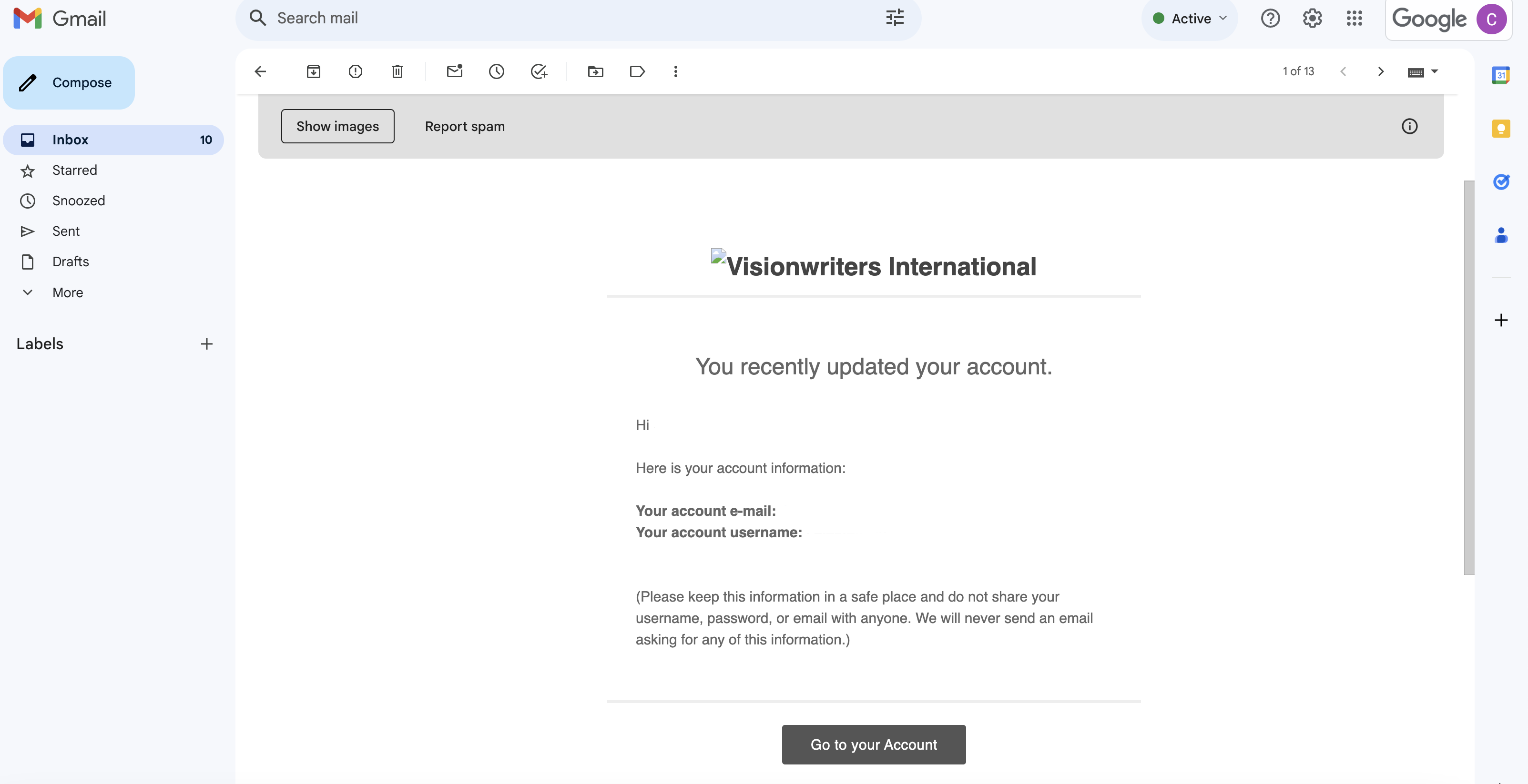
You will also receive a confirmation email at the updated email address. This email will notify you that your account details have been successfully updated.